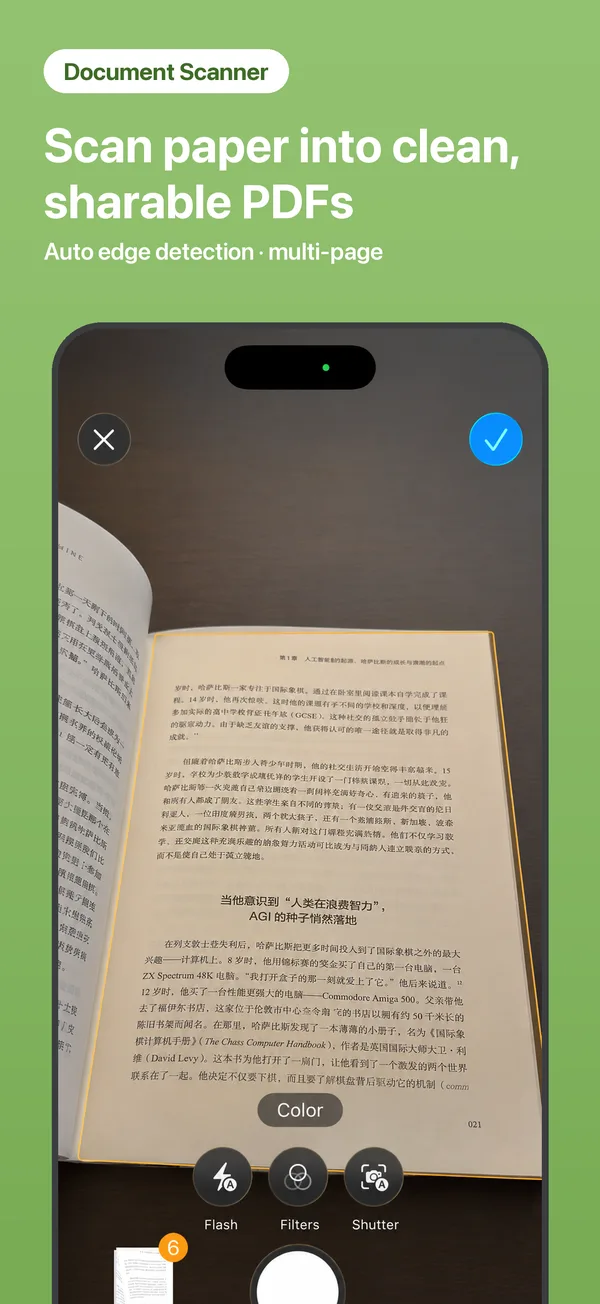
Point your camera at a document — iFiles finds the edges, straightens the page and captures it automatically. Add as many pages as you need, then save the result as a clean PDF right into your files.
Go to Tools → Scan Doc.
Automatic edge detection and auto-capture do the work; multi-page scans are automatic.
The scan lands in My Files as a PDF — rename it, move it, or share it anywhere.
Yes — keep capturing and every page joins the same PDF.
You can try it for free. Unlimited scanning is part of iFiles Pro — a subscription or a one-time lifetime purchase, with a 3-day free trial.
Yes. Scans are saved locally and never uploaded anywhere.
 iFiles