iFiles turns your iPhone into a tiny web server on your local network. Type the address it shows into any browser on your computer, then drag files in to upload or click to download. Nothing goes through the internet — and it's completely free.
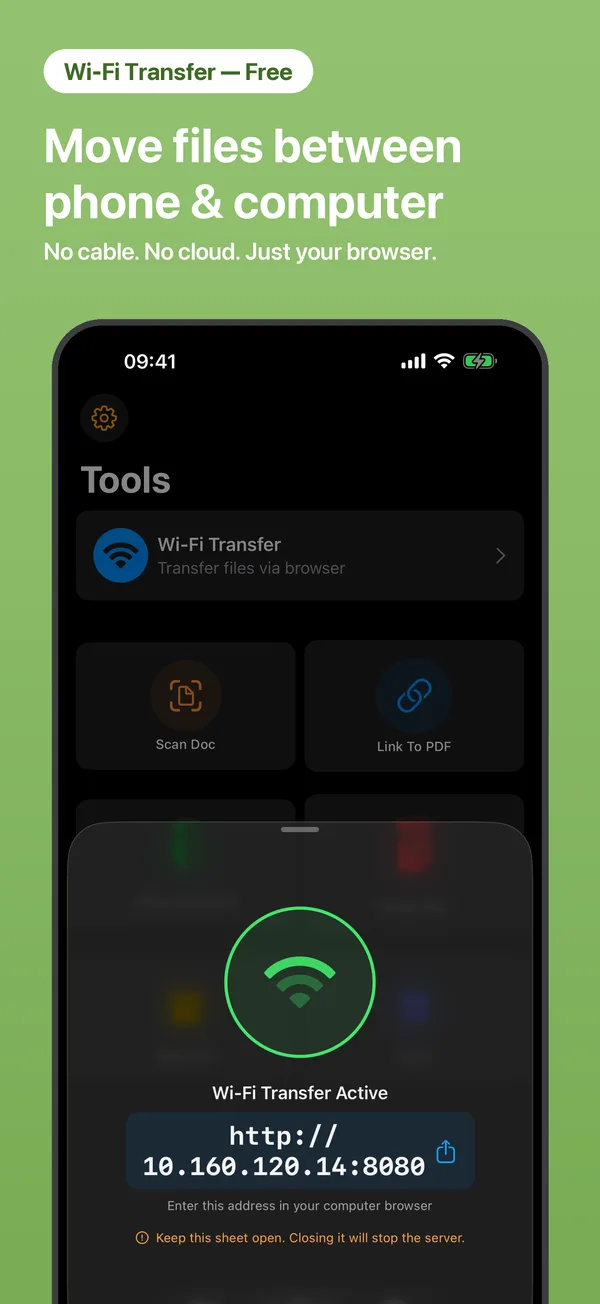
Open Tools → Wi-Fi Transfer in iFiles and tap Start.
On the same Wi-Fi, type the address shown (like http://192.168.1.5:8080) into any browser.
Upload by dropping files into the page; download with a click. Folders, batches and ZIP downloads included.
Yes — completely. Wi-Fi Transfer is iFiles' free flagship feature, not part of the Pro upgrade.
No. Your iPhone and computer talk directly over the local network. Files never touch a cloud server.
No. Any modern browser works — Windows, Mac, Linux, even another phone.
5 ways to move files between an iPhone and a Windows PC or Mac without iTunes — Wi-Fi transfer in a browser, USB, iCloud, AirDrop and more, with honest pros and cons.
Move hundreds of photos and videos from an iPhone to a Windows PC over Wi-Fi — no cable, no iCloud quota, original quality. Step-by-step guide plus HEIC tips.
 iFiles